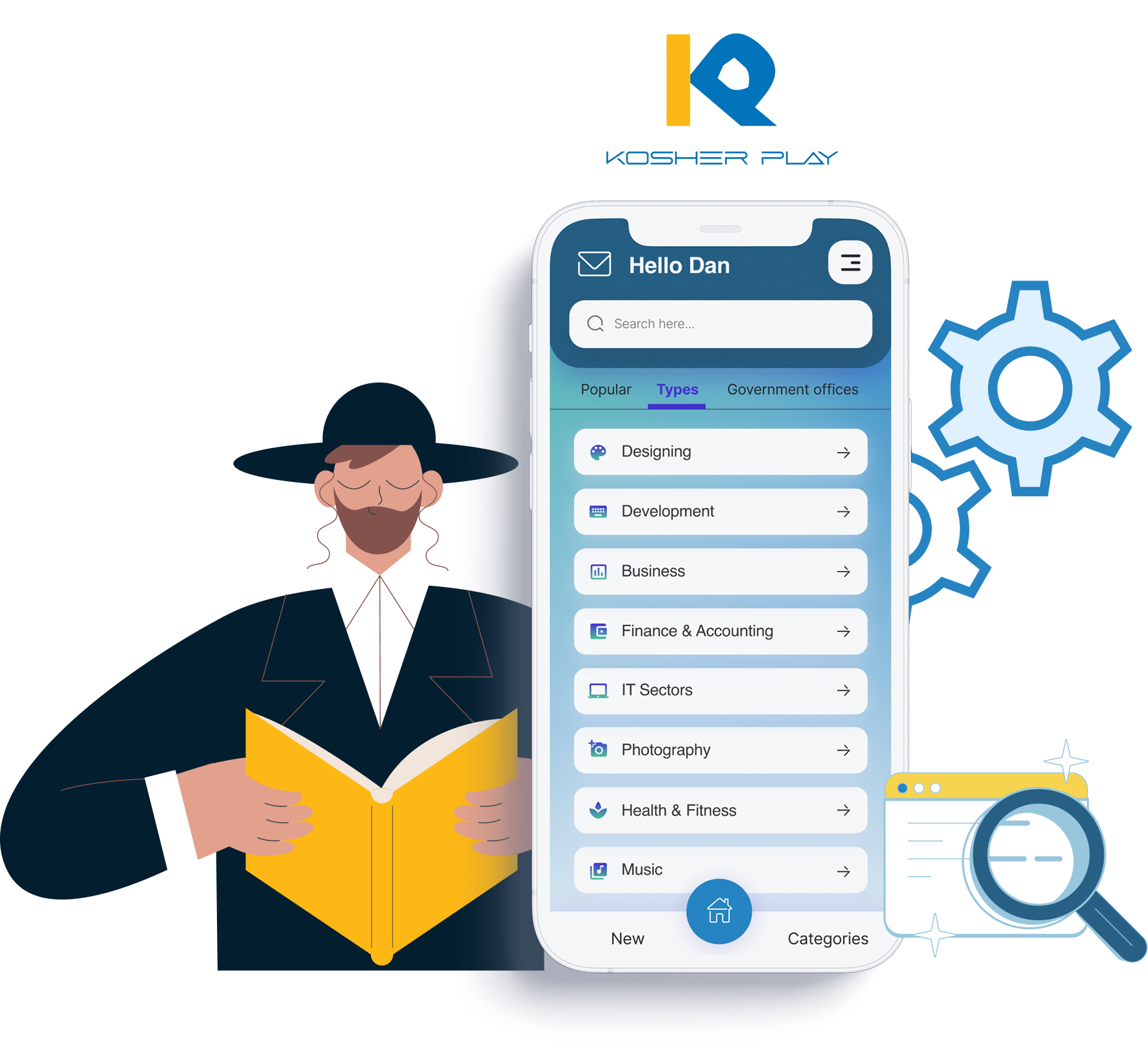
Go to the Google Play Store and search for the words “Kosher Play.” The first result that appears will be our official app.
Click Install and open the app after installation.
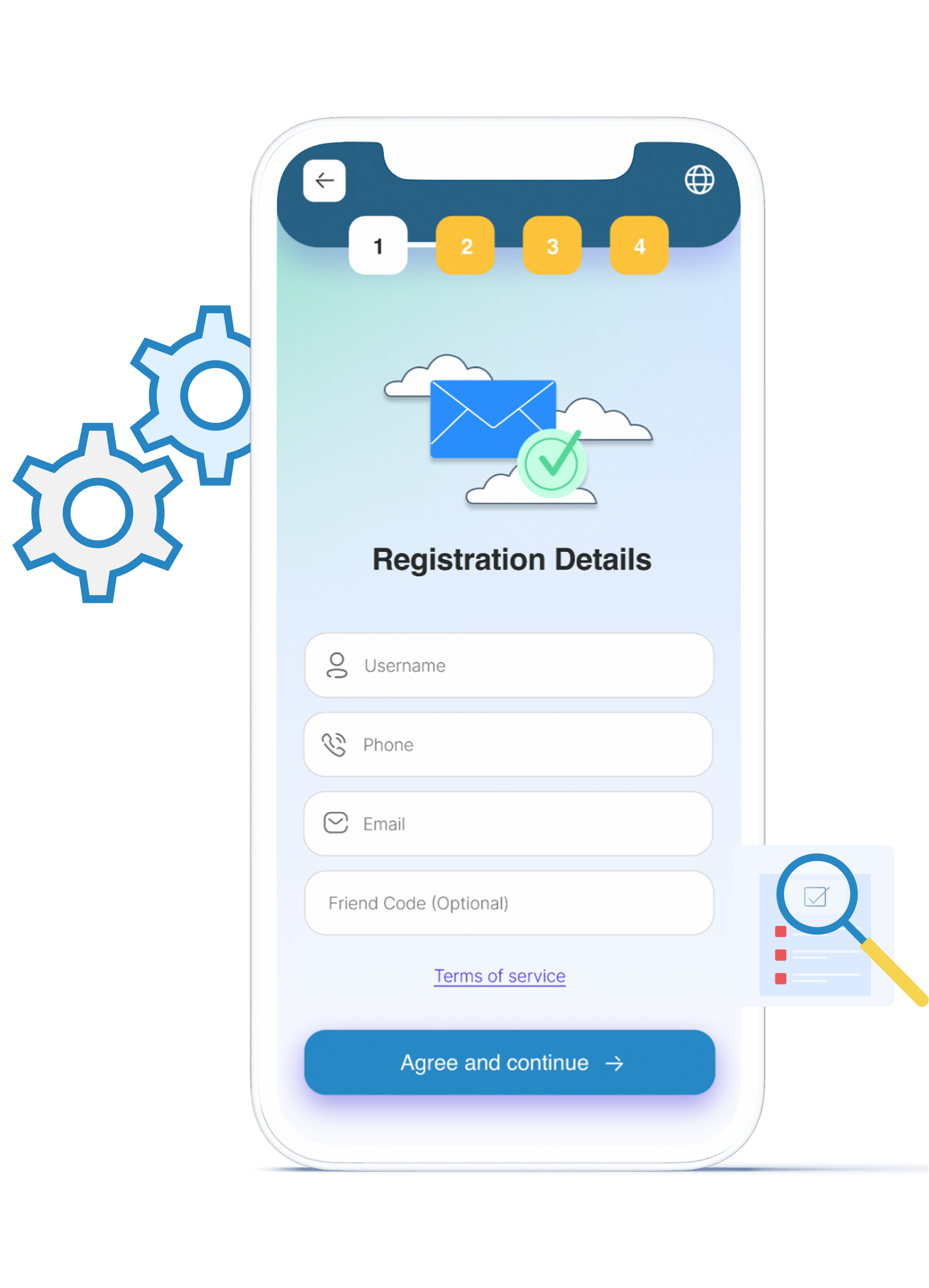
Click Register. Once registered and after replacing your device, send us a notification through customer service so we can activate your license and allow future device replacement if needed.
2. Open the app and click “Register.”
Fill in your registration details: name, phone number, and email address.
If you replaced your device or performed a factory reset, contact our customer service to reactivate your license. When contacting us, include your registered phone number so we can locate your account.
If you didn’t complete the registration, send us a message so we can reach you by phone and assist.
After filling out your details, click Continue to define your filtering level.
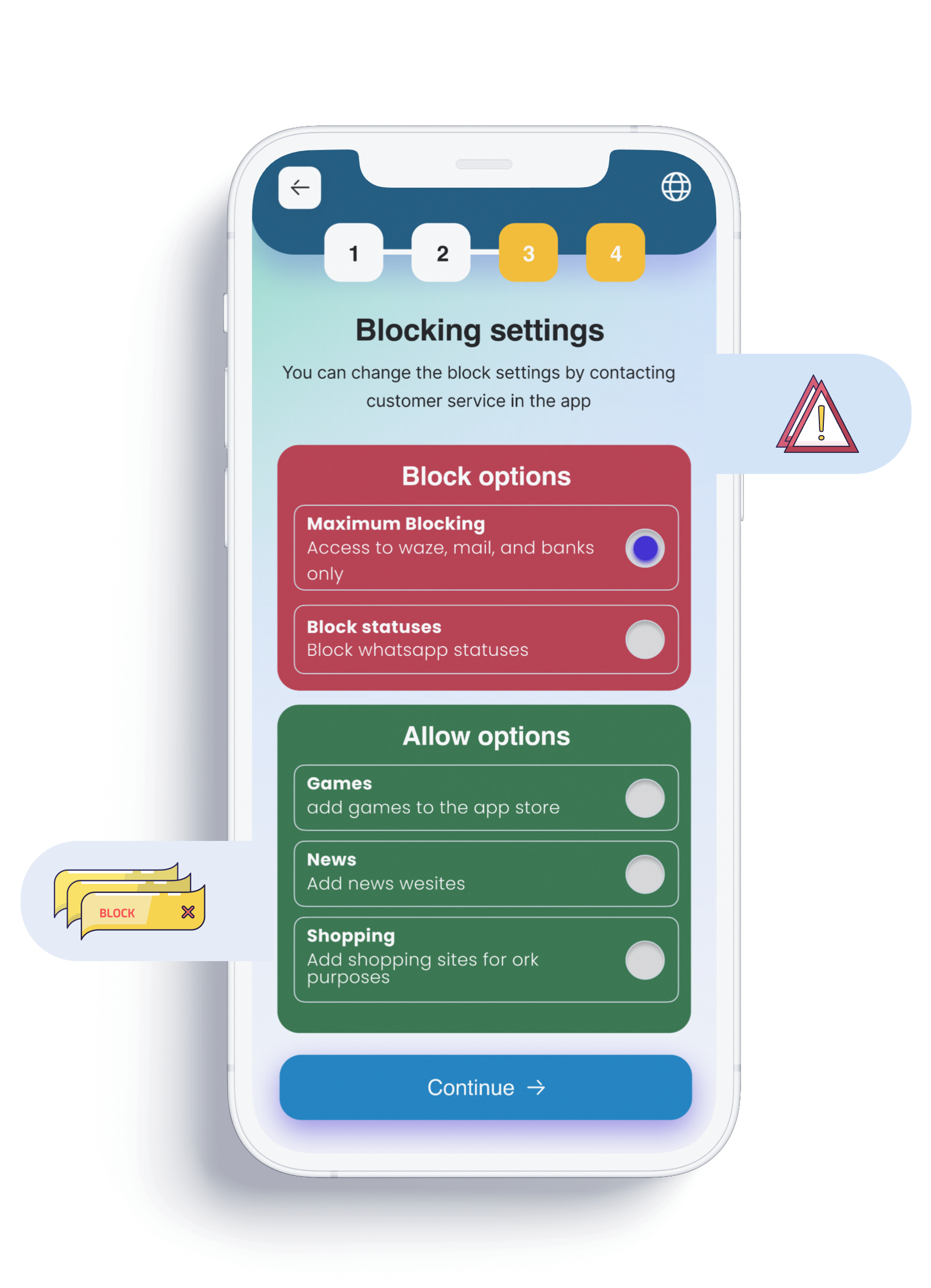
3. Define the filtering level
Depending on how much you want to block access to non-kosher websites, you can choose your preferred filtering level. If you wish to change your filter level later, you can contact our customer service after registration.
To block social networks such as Facebook, Instagram, and Twitter — select the Social Networks blocking option.
To block video sites such as YouTube and others — select the Video Sites blocking option.
To block news sites that are not suitable for religious audiences — select the News Sites blocking option.
To block shopping sites abroad, such as AliExpress and others — select the Shopping Sites blocking option.
You can also choose to block Google ads — this will hide most ad banners on websites.
After registration, you can choose to try the service for a one-week trial, or click Continue to proceed to the payment screen.
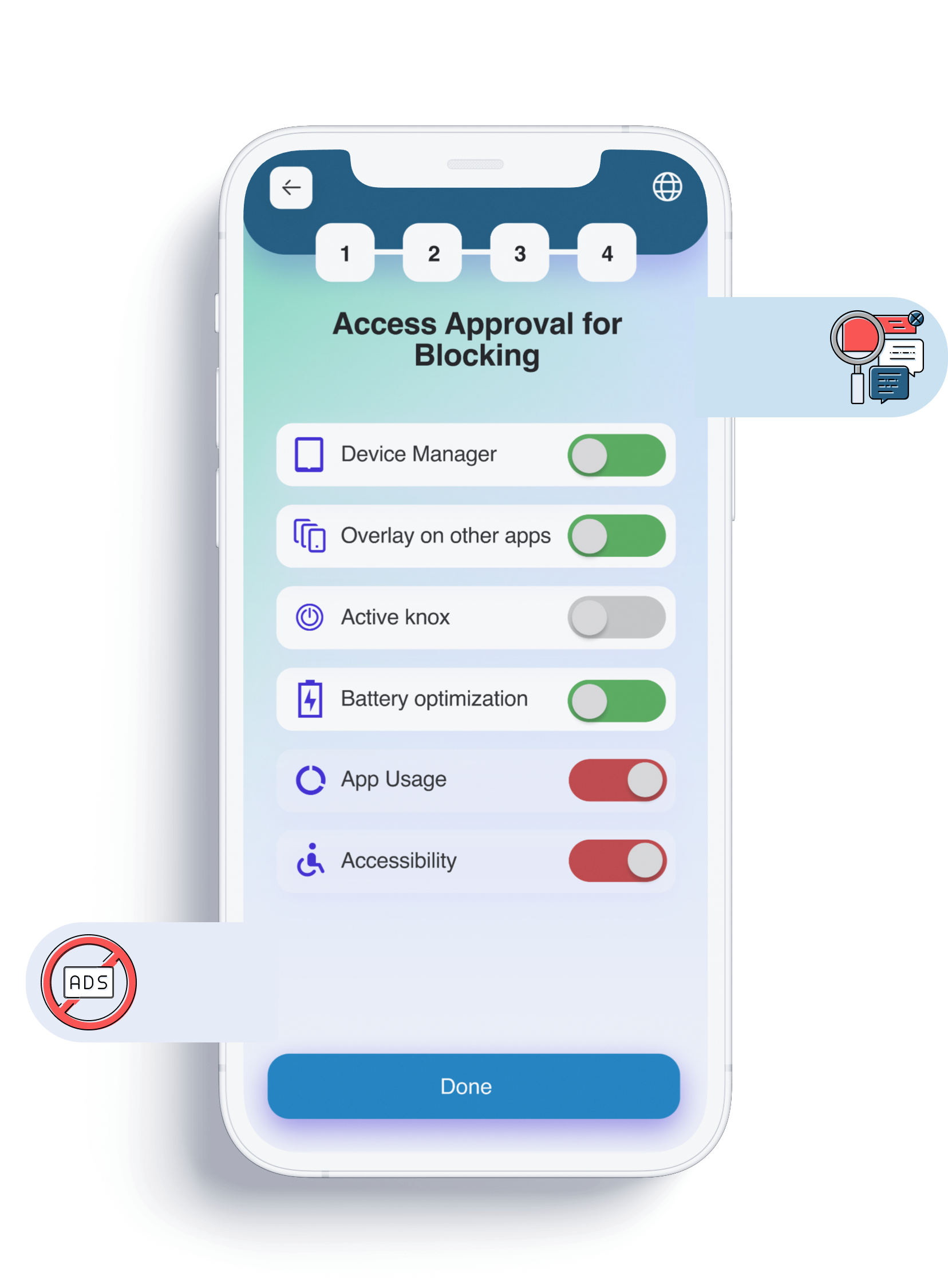
4. Confirm the registration for filtering
The registration ensures that the app can identify the sites and content that should be filtered or blocked. Filtering operates only on the device itself — no data is transmitted from your phone. We only receive your registration details and device model for verification.
Click on Device Manager, then click Allow/Approve.
Click on Drawing Over Other Apps, then mark Allow.
Click on Battery Optimization, then mark Allow.
Click on Accessibility, then in the next screen search for Kosher Play (on some devices, the name might vary). Click on Kosher Play and mark Allow to enable the filtering service.
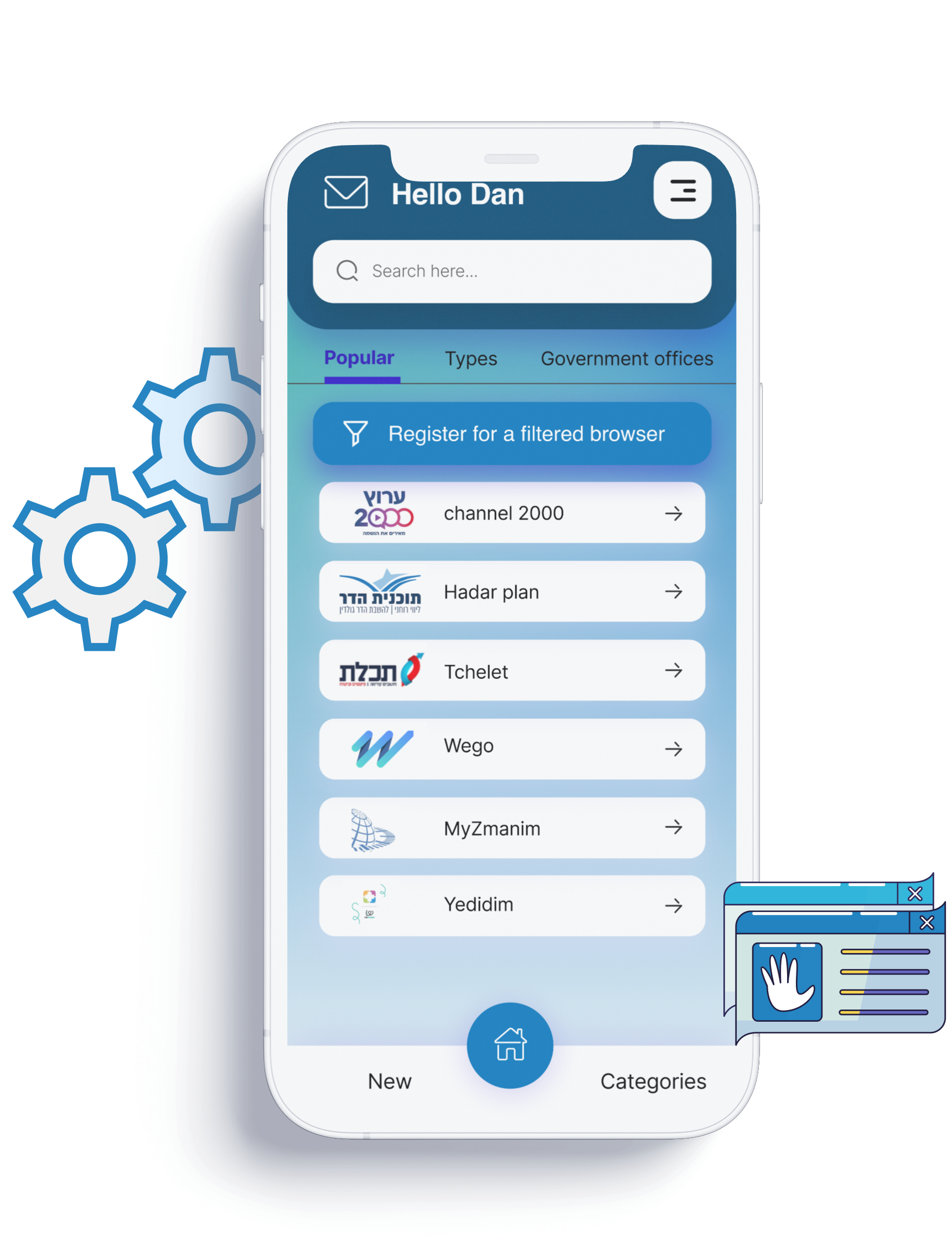
5. Enjoy smart and comfortable filtering
Interested in changing your filtering level? Having trouble operating your device? Contact our customer service — we’ll be happy to provide you with the best possible support.